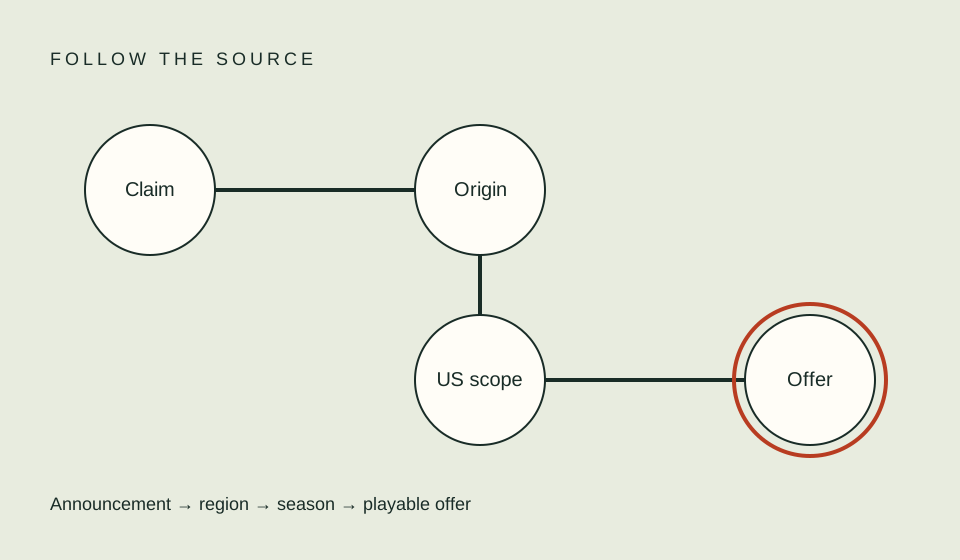
When a movie or show is missing from a streaming search, first establish which title and account you are checking. Search results can differ by profile settings, language, region, edition, or rights. A missing card is evidence only about that search in that context; it does not establish that the title is unavailable everywhere or that a subscription change will fix it.
Confirm the exact title and edition
Write down the title, year, original-language name if relevant, and whether you want a film, a series, or a particular season. Add a cast member, creator, or network when the name is common. An older film and a remake can share a title, while international titles may be indexed under different spellings. The title-edition guide gives a structured way to keep those candidates separate.
Search the provider’s own US app or website for the exact identity. If the first query is broad, try one alternate official title or a distinctive cast member. Do not keep expanding the query until an unrelated franchise result appears. Record what you tried and the exact page you opened; “not found” is more informative when the search scope is clear.
Check profile and search context
Make sure you are signed into the intended account and using the profile you expect. Parental controls, maturity settings, and blocked-title lists can affect what appears for some services. Netflix’s help documentation, for example, explains that title restrictions can remove a show from an individual profile. That provider-specific fact is a prompt to inspect the relevant account; it does not explain every service’s search behavior.
Also consider profile language and device differences. A provider may offer language controls or filter titles based on language preferences. On Netflix, official guidance says profile language can affect which titles are displayed in some situations. Change a setting only if you understand what else it affects, and return it after checking if needed. If another device is already signed in, compare the result without changing the household’s settings.
| Context check | What to record |
|---|---|
| Exact title | Name, year, alternate title, film or series |
| Profile | Which profile performed the search |
| Region | Your actual current location and US context |
| Language | Profile display and audio preferences |
| Device | App or browser and version if known |
| Result | Search page, title URL, or exact message |
Distinguish search from entitlement
A title card in a catalog does not prove it is included in your current plan. Conversely, a search with no result does not prove the service never offers it. If you find a candidate page, inspect the exact offer: included plan, channel add-on, rental, purchase, or a trailer-only result. The where-to-watch workflow helps verify the title and offer before you pay.
Do not subscribe to a plan solely because an external page associates the title with a provider. Check the signed-in US title page and checkout wording. Catalog listings can change; use a current page, not a cached excerpt from a search engine. If the provider page asks for an extra payment, treat that as a different transaction until you confirm its terms.
Check region without trying to bypass it
Some catalogs and offers vary by country or territory. Make sure you are looking at the official US destination and the account region you actually use. If you are traveling, the provider may show a different catalog or display a location message. Follow the service’s support instructions; do not use a proxy or location-masking method to force a result.
Netflix’s official help describes cases where a title may not appear because of regional rights or account context, and provides separate guidance for a current-region error. Prime Video’s terms also describe geographic variation. These examples demonstrate that services apply their own rules; they should not be generalized to a different provider or treated as a diagnosis from a search result alone.
If you see an explicit message saying the title is unavailable in your current region, save the exact wording and follow that provider’s official help path. A generic missing result is not the same message. The guide on region-mismatch results separates location evidence from ordinary catalog search.
Decide whether the issue is discovery or playback
If the title appears but will not start, stop searching for catalog explanations and record the playback error. If only one episode or season is absent, compare numbering and title details before assuming an outage. If the page is present but the offer is missing, inspect plan and billing context. These are distinct problems and may lead to different provider support pages.
Try one comparison that isolates the variable: the same account on another supported device, or another profile where you are authorized to check. Avoid changing several profile and network settings at once; that makes it hard to tell what changed the result. Keep passwords, payment details, and personal data out of screenshots shared for troubleshooting.
FAQ
Does an empty search mean a service removed the title?
Not by itself. Confirm the identity, profile, region, and provider page. A search result alone cannot establish the history of a catalog listing.
Should I change my account region to test the listing?
No. Use the service’s official region and travel guidance. This guide does not recommend bypassing location rules.
Should I buy a different plan if the title is missing?
First verify the exact title and offer in your signed-in account. Do not assume another plan includes it based on an outside listing.
Related guides
Sources
- Netflix Help: missing titles — provider-specific reasons a title may not appear.
- Netflix Help: profile restrictions — how blocked-title and maturity controls affect a Netflix profile.
- Prime Video Terms of Use — states that content and offers vary by location.